
Create CloudStream Data Backup and Fix Restore Backup Error
If you think that reinstalling or updating Cloudstream will delete your favorite watch history or extension plugins and erase your history, you’re mistaken.
This is the easiest way to back up your data.
How to create cloudstream data backup ?
Let’s understand it step by step:
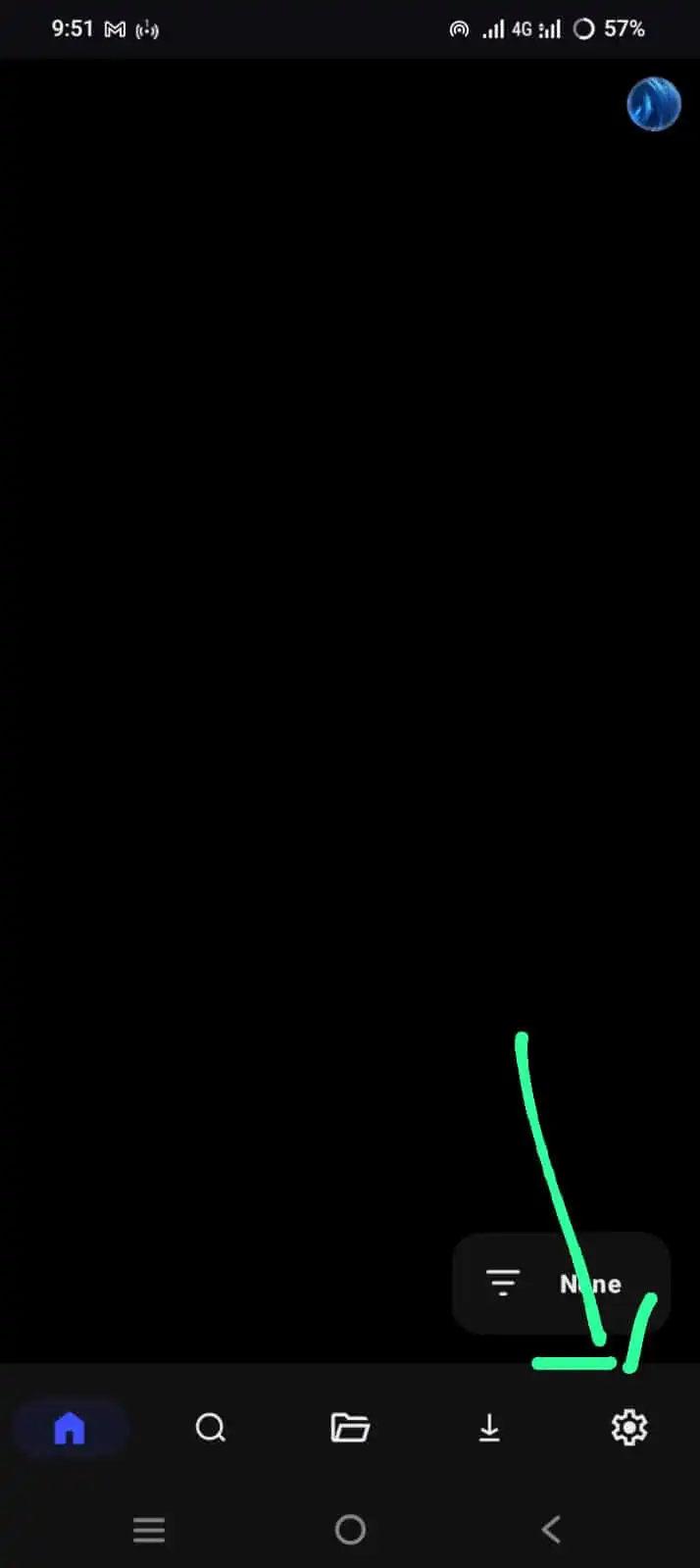
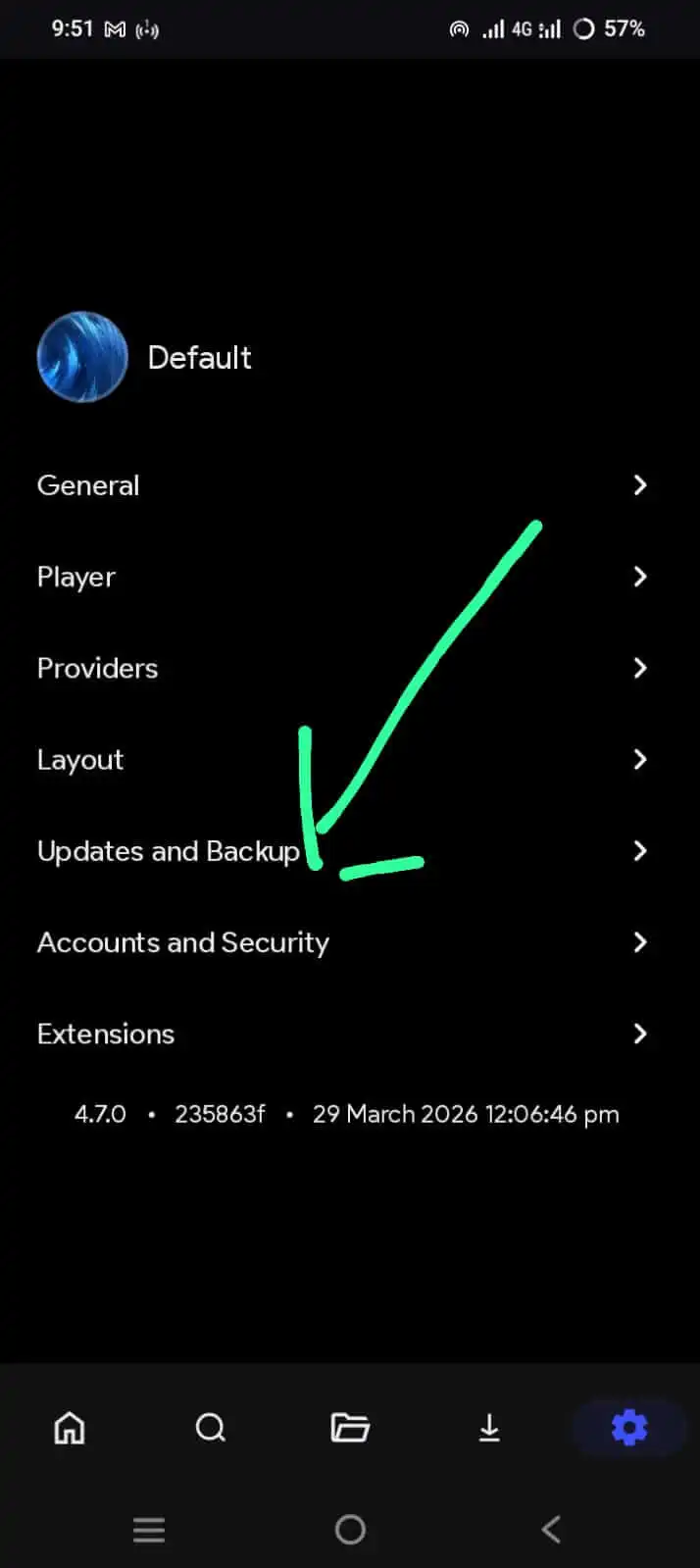
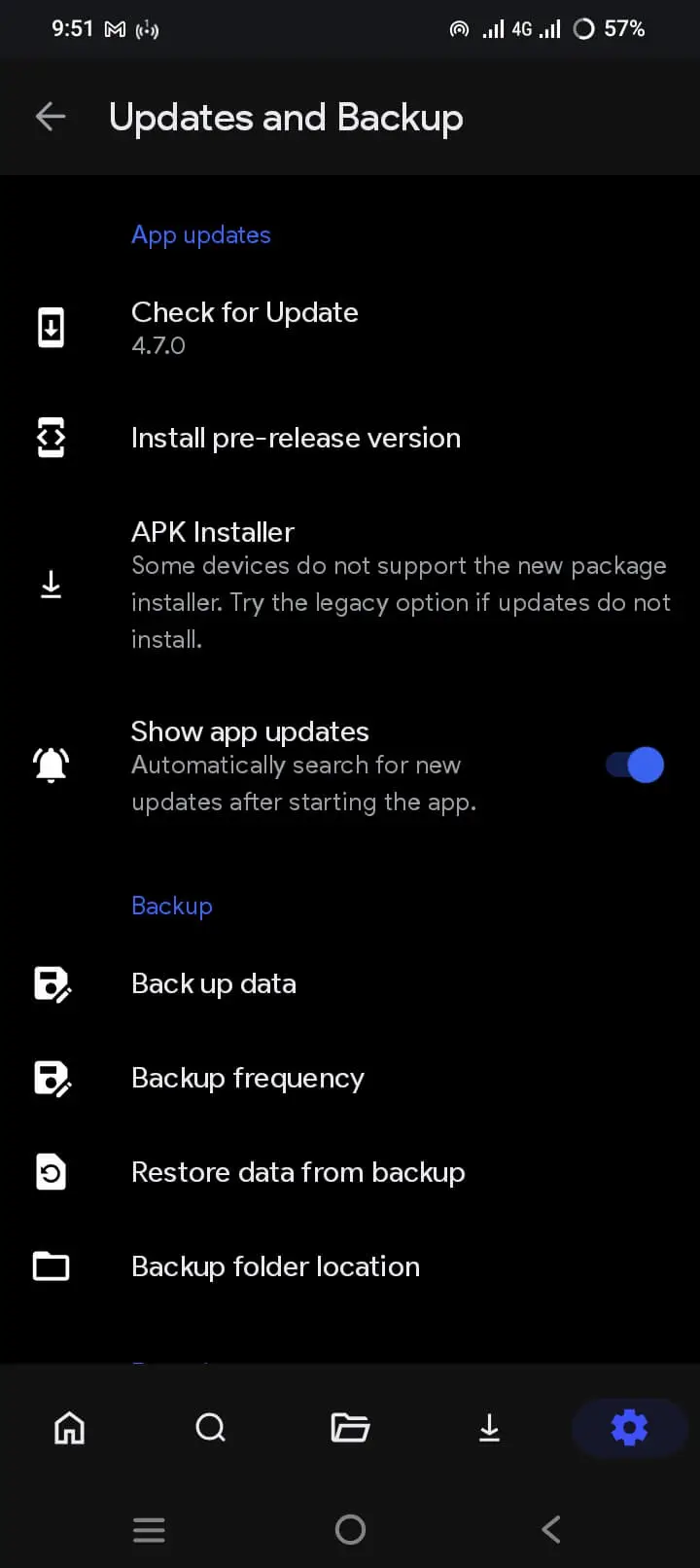
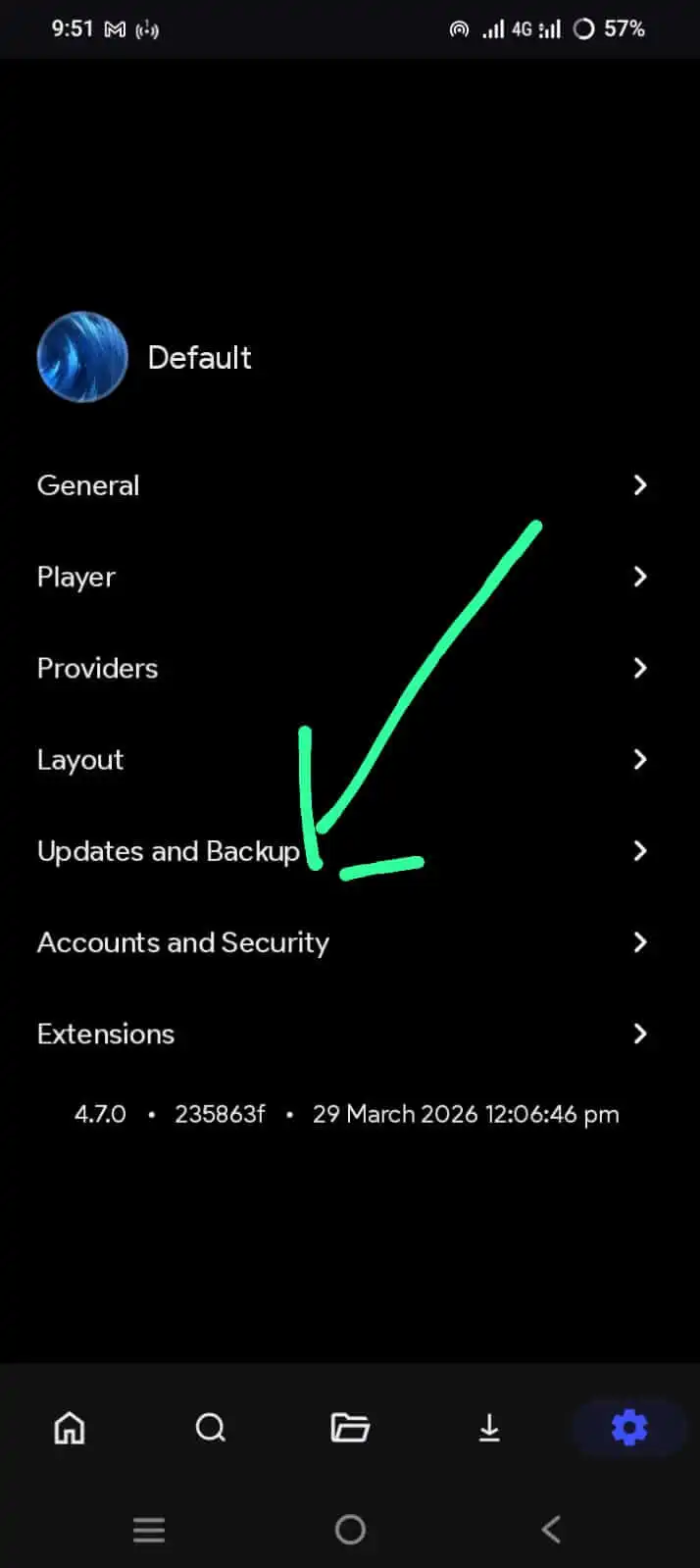
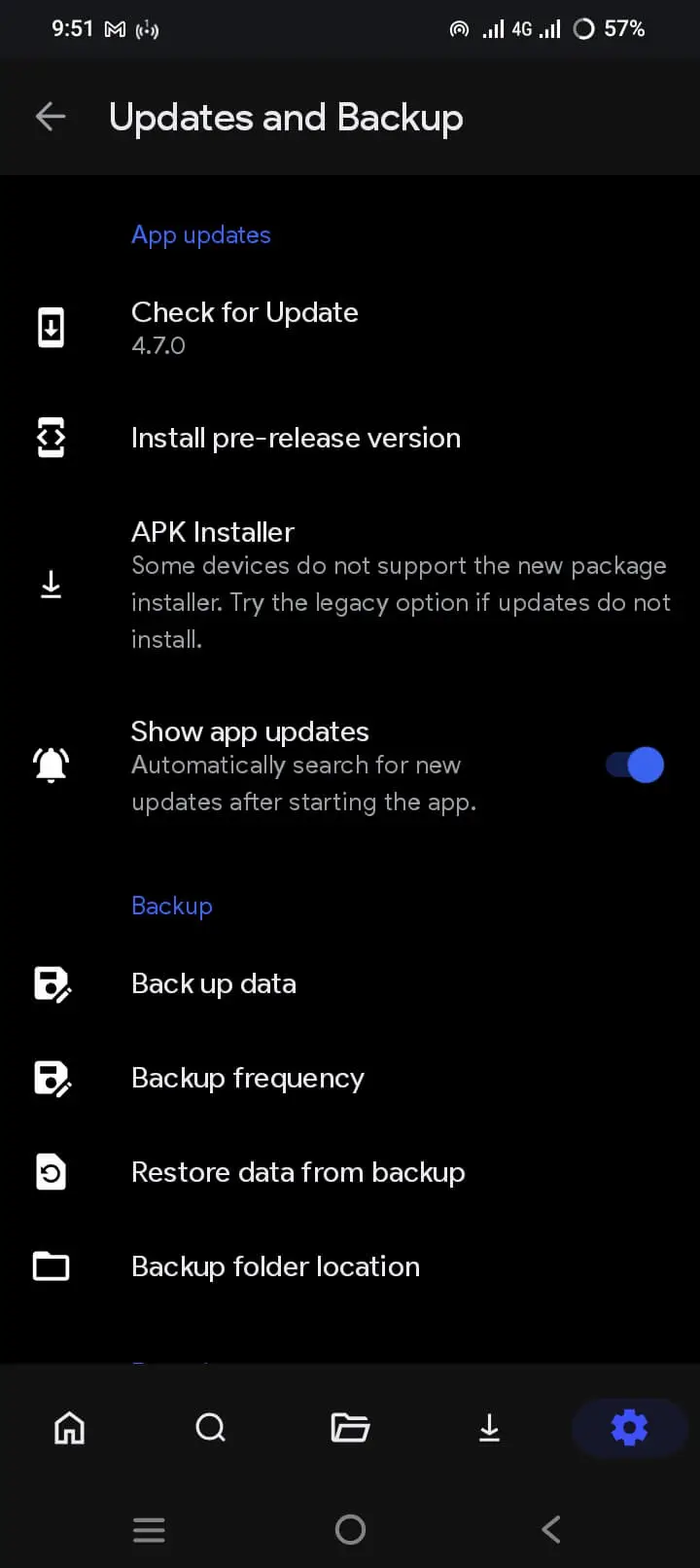
- Simply open installed app.
- Press the "Setting" option on the right side to go to the settings.
- After this, press on updates and backups.
- In the backup section, you can see four options.
- Data Backup
- View Backup frequency
- Choose the Backup folder location
- Choose the Backup folder location
Set Backup Frequency
If you’re one of those users who forget to back up on a daily basis, there’s no need to worry. You can click on “Frequency” and set it to run automatically.
How to change the cloudstream data backup location?
Press the Settings and select the backup location, then press Update and Backup. After the scrol to the location where you saved the backup. Enter the backup and restore it.
How to Restore cloudstream data backup?
Visit to settings > updates and backups > and Press the recovered data from backup section. Then open the place where you saved the backup. Select the backup and recover it.
How to Fix CloudStream Restore Backup Error?
If you’re having trouble taking a backup, follow all the steps below.
- Search the file you saved on your device.
- look at the backup file extension, txt, .json, or .it’s
- Sometimes you'll see .json at the end of the file; that's why it's .txt.
- Just restore the backup, and it will complete successfully.
Taking a backup of cloudstream is a great option, because if it gets deleted for any reason, the app will be lost. You’ll have a backup of your previous app’s data. In my view, this is a fantastic practice.
FAQ’s
Taking a backup depends on your preference; if you want to, then it’s a very good practice.
Yes, you can change the backup file location in easy steps: Settings > Backups > Backup folder location.