Cloudstream Subtitles Not Working | Troubleshoot The Error
Sometimes on Cloudstream the subtitles don’t work properly. The subtitles All of a sudden turn off. When see dramas, TV shows, web series, Netflix seasons, or Korean dramas, the subtitles do not working.
To solve this error, I’m giving you guidelines—follow them:
Overview For Users
Sometimes on CloudStream the subtitles don’t work properly—they might disappear, error out when casting audio, or fail to sync correctly with the TV. These are issues that can be easily resolved. Clear the app’s cache, update your extensions and use the updated APK, keep the auto-subtitle option on, and use a VPN. For complete instructions, read the full article.
Cloudstream subtitles not working errors and their FIX
You can To confront two types of subtitle Let me explain in steps.
1st: Broken Subtitles Error
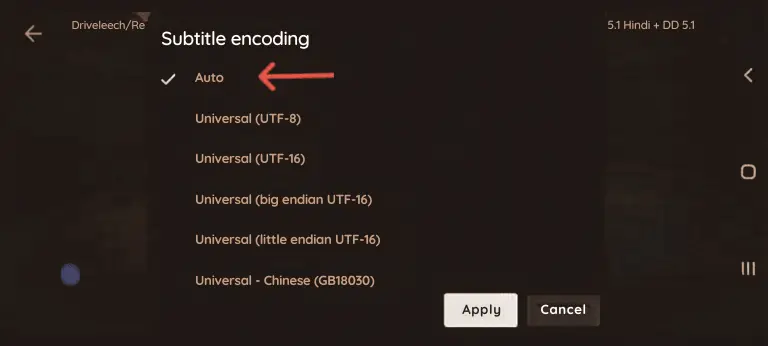
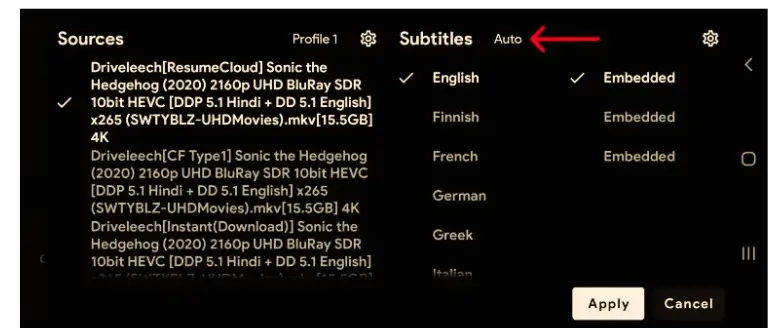
This error in Cloudstream Happens when the subtitle file incorrect format or is not properly synced with the video. That’s why the subtitle doesn’t work properly. If you’re facing this issue, I have provided its solution in the steps given below…
- Select Sources
- Select Subtitle
- Tap Auto
- Now the app will appear the best available subtitles.
This will greatly improve the performance of the available subtitle app. By follow these steps, your error will be solved.
2nd: Subtitles Casting Errors on TV
If you are having an error with TV subtitles, you can easily fix it.
- Goes to the Trusted App setting (Google Play Store)
- Change the streaming link on your TV.
- Then click the play button, select "Play with Video Cast,"
follow the steps, and your error will be resolved.
How can you customise Chromecast subtitles?
You can create the main subtitle of the CloudStream app however you like.You can easily customize subtitles by changing the font size, background color, font style, text outline, and other subtitle settings.
Follow these steps given below.
- select settings.
- Select Player
- Select on subtitles.
- Select on Chromecast subtitles. Change subtitles as you prefer.
- Select on the apply button.
- Changes will apply now.
- To set an option, tap and hold on it so that it will revert to its default setting next time.
By follow these guidelines you can easily adjust the subtitle not working issue and the error that show while see content in the Cloudstream app. If the error still isn’t resolved, you can contact me through the contact us page.
Frequently Asked Question
During video streaming, click the Source option. When the screen opens, the Subtitle option will appear. This lets you use your preferred subtitles.
Yes, Cloudstream supports multiple subtitle languages. Click on the source and select your preferred language.
Yes, you can easily customize the subtitles. tap on Source, tap your favourite subtitles, and set thesettings.
While viewing the content, click the Source option. Select the “No Subtitle” option. This will turn off the subtitles.
Sometimes the subtitles are hardcoded (already embedded in the video), so you cannot turn off. If you so far have issues, update or uninstall the app and reinstall it, or use a VPN.